

Prerequisites
- A Siteline website key
- A Vercel account with your project deployed
Log Drains are available on Vercel’s Pro and Enterprise plans. See Vercel Drains pricing for details.
Setup
1
Open Log Drains settings
In the Vercel Dashboard, navigate to your project’s Settings > Log Drains and click Add Log Drain.
2
Select drain type
Choose Custom HTTP Endpoint as the drain type.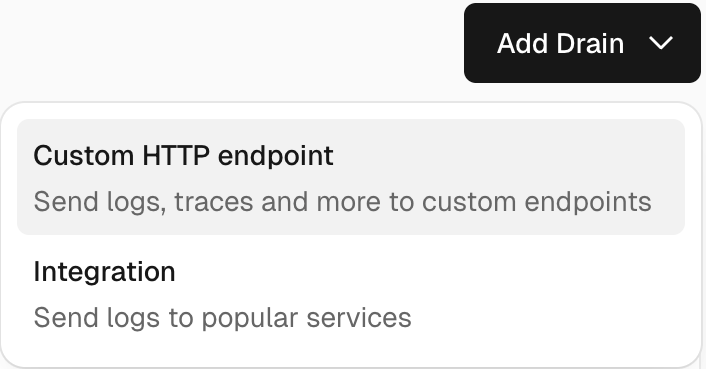
3
Select data sources
Select Logs as the data to drain.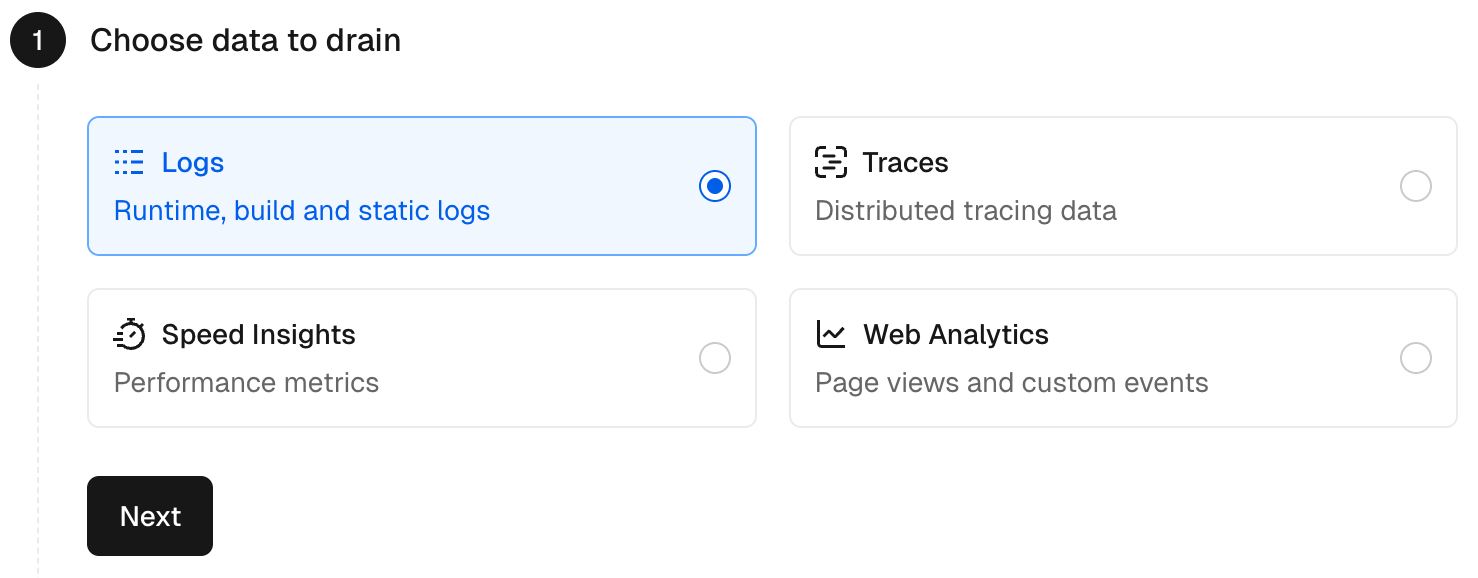
4
Configure the drain
Fill in the following fields:
- Drain Name:
Siteline Agent Analytics - Projects: Select your website project
- Sources: Select all except
Builds - Environment:
Production - Sampling Rate:
100%
5
Set the endpoint URL
Enter the following URL, replacing the placeholder with your Siteline website key:
6
Save
Click Create Drain to activate. Vercel will begin forwarding logs immediately.
How it works
Vercel Log Drains stream server-side request logs to an external HTTP endpoint in real time:- AI agents, bots or humans make requests to your Vercel-hosted site
- Vercel processes the request and generates a log entry
- The log entry is forwarded to the Siteline intake endpoint in the background
- Siteline identifies AI agent visits and human referral traffic and surfaces it in your Agent Analytics dashboard
Endpoint parameters
string
required
Your Siteline website key, passed as a query parameter in the endpoint URL.
Troubleshooting
Log drain not sending data
Log drain not sending data
Verify the drain is active in Settings > Log Drains. Check that the endpoint URL includes your website key and that the drain status shows Active.
Only seeing some requests
Only seeing some requests
Ensure Sampling Rate is set to
100% and that Builds is the only source excluded.How do I find my website key?
How do I find my website key?
Navigate to Agent Analytics in your Siteline workspace and click Manage Configuration to view or regenerate your key.
How do I update the endpoint URL?
How do I update the endpoint URL?
In Settings > Log Drains, delete the existing drain and create a new one with the updated URL.