

Getting Started
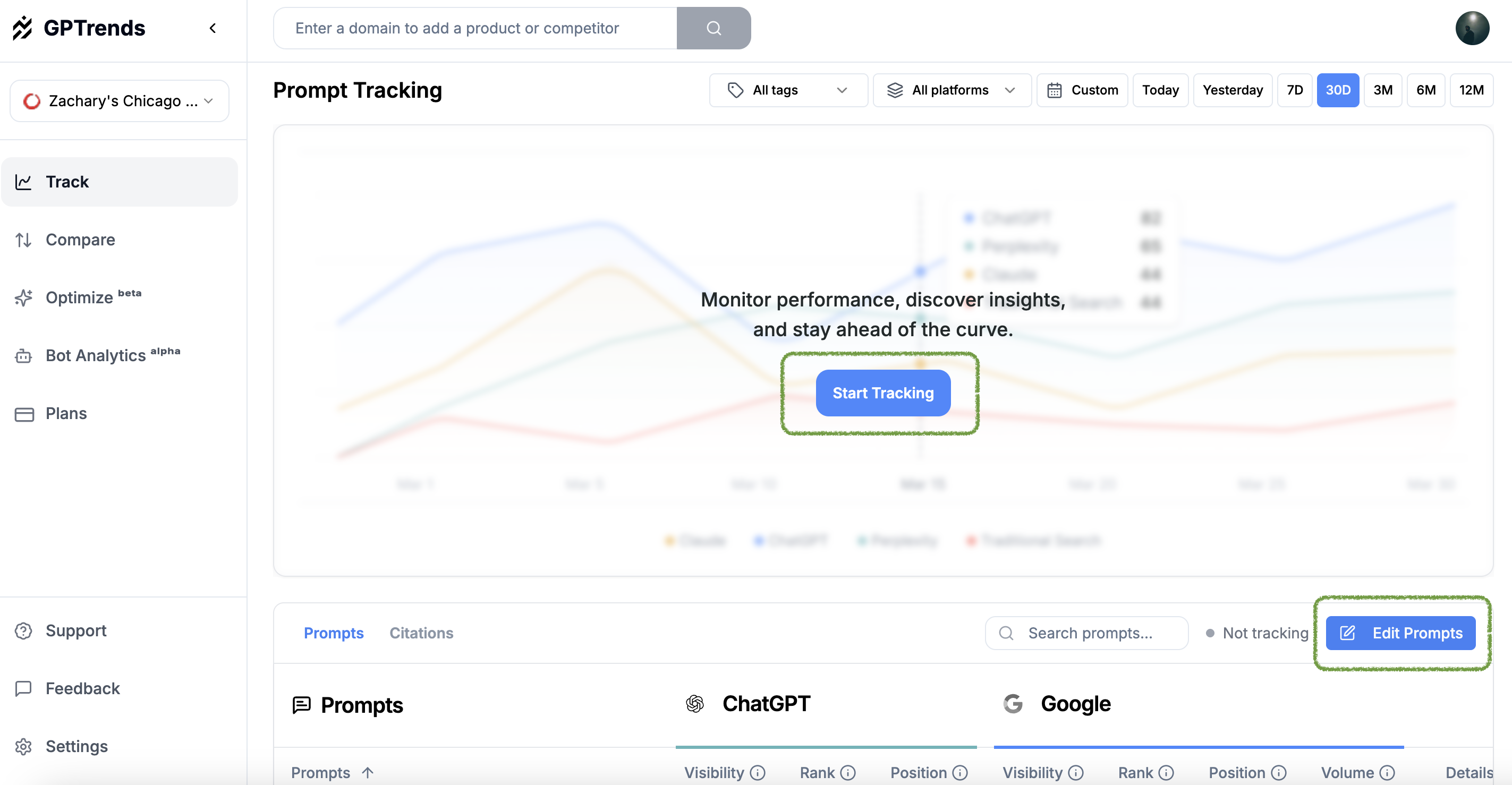
In addition to pre-generated and expanded prompts based on your competitors, Siteline allows you to enter a list of custom prompts during the tracking configuration process. You can set up tracking for the first time or edit existing tracking by clicking the “Start Tracking” or “Edit Prompts” buttons in the Track section.1
Start prompt tracking
2
Prompt selection step
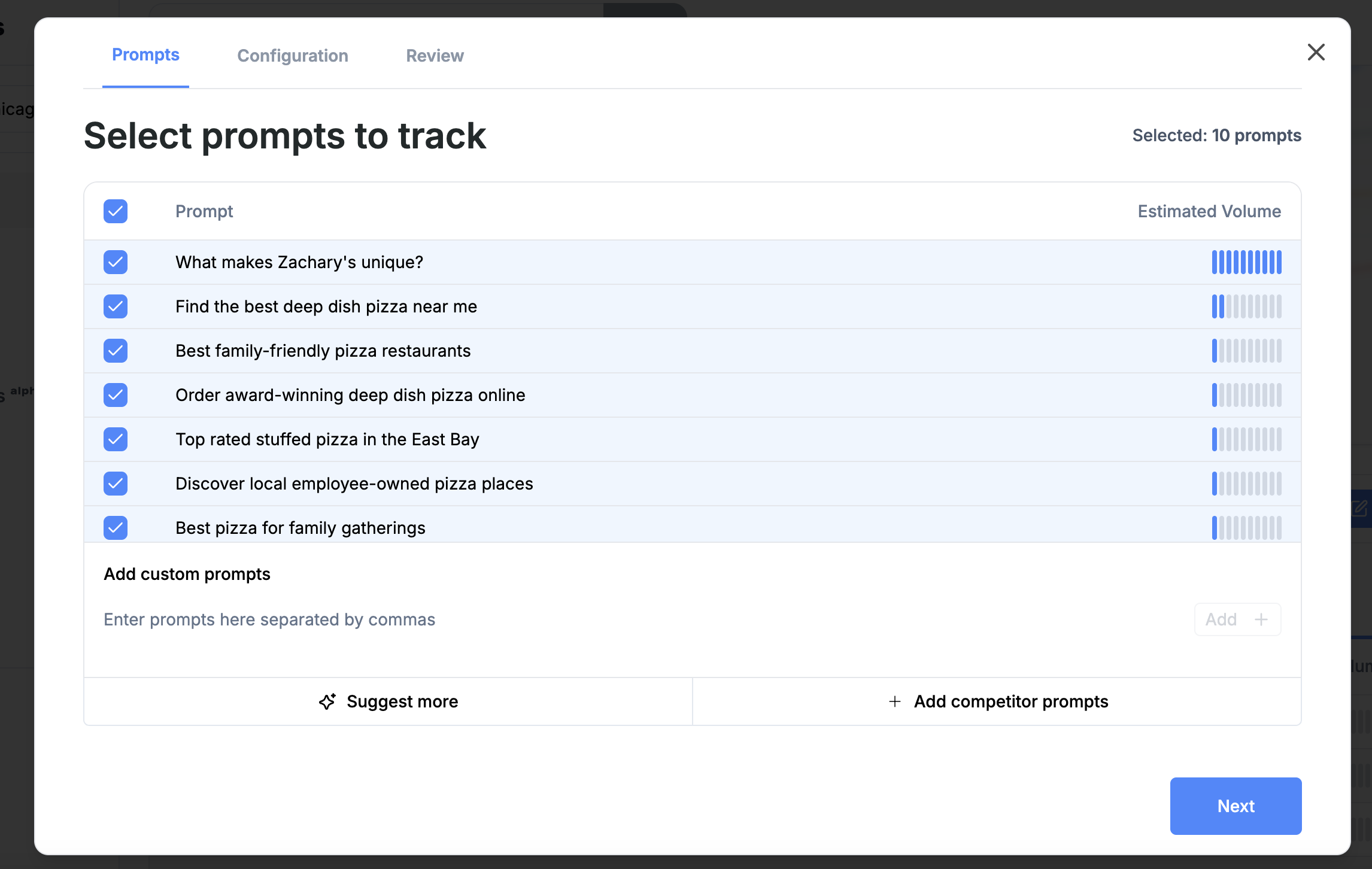
- You can then add custom prompts one by one or paste in a comma-separated list
- Once added an “estimated volume” field will be shown as a proxy for the amount of AI search conversation based on traditional search and other factors
Keywords vs. Prompts
When selecting prompts the overall goal should be to pick a well distributed set that covers your key customer and product segments.- Compared to keyword searches in Google, which consist of 2-5 words, prompts entered into ChatGPT tend to be longer and more customized to specific needs and uses e.g. “top CRMs” vs. “What are the top CRMs for small businesses with a rich integrations capabilities, particularly with Twilio.”
- Additionally, two prompts may have different text, but very similar semantic meaning and will likely lead to the same output e.g. “Best CRM for SMBs with Twilio integration.”
Given the above dynamics, we recommend crafting custom prompts that cover your key segments and are semantically different to ensure that your visibility results are representative of your target audience and unbiased
Suggested Prompt Selection Approach
Step 1: Identify key segments
Note down some key segments or categories you use when thinking about targeting and analyzing your marketing efforts. Here are some common ones:- Product category / features
- Ideal customer profile (ICP)
- Customer vertical
- Customer stage
- Purchaser role function
- Pain-point solved
Step 2: Create tags within segments
For each of the categories above list out the segments, these can be used as Tags once within Siteline. Continuing with a CRM offering example:- Product features:
- Activity Tracking
- Reporting
- Integrations
- Customer Vertical
- B2B SaaS
- Marketing Agencies
Step 3: Generate prompts by segment and segment cross-section
Generate a 4-8 word phrase or question with high product discovery intent for a single segment or a cross section of segments.For a single segment
Sticking with the segment examples above, construct your prompts with the following structure:“Best” / “Top” / “Recommend” + [Your product category] + [Segment]For example:
For segment cross-sections
After you have prompts that are one-to-one with segments you can create prompts that represent the cross-section of multiple segments. Note: Use as needed, not all cross-sections may make sense.Step 4: Compile, comma-separate and paste into Siteline
Once your prompts are generated you can paste them into comma separated list of prompts in to the configuration stepPrompt Weighting
When you enter prompts on Siteline the platform will automatically pull in a volume estimate based on the equivalent keywords on traditional search engines Google + Bing. To further weight your prompts for offline analysis we recommend using the following as proxies:- Visitor traffic from to your website or blog
- More traffic on a topic —> more interest —> higher weight
- Support tickets or demo requests by topic
- Hashtags or terms on social media
- Volume of AI search requests from crawler or user bots to various content pages of your website
- For example, if you see lots of bots crawling your page about “Integrations”, it’s a good indication that there is user interest in that aspect of your poduct and related prompts should be strongly weighted.
- Gain access to bot activity data directly in Siteline for free by setting up Agent Analytics.